
What you can import
You can import people and companies into Zyflow from any CSV, one file for each. Save it from Excel, Google Sheets or Numbers, or export it from Google Contacts or another CRM. That’s how you import a spreadsheet into a CRM without retyping a row.
| People | Companies |
|---|---|
| Full name, or First name and Last name | Company name and Legal name |
| Job title, Company, 2 emails, 2 phones and WhatsApp | Website, Industry, Email and Phone |
| Lifecycle, Source and Tags | Lifecycle, Source and Tags |
| Address, City, State, Postal code and Country | Address, City, State, Postal code and Country |
| Birthday and Anniversary | Tax ID (such as a VAT number or EIN), Payment terms and Credit limit |
| Notes (saved as a note) | Notes (saved as a note) |
Zyflow maps common headers such as Full name, Email, Mobile, Company, Status and Tags for you. You match any other column in the preview.
Before you import: a quick checklist
- One header row, then one person or company per row. Include an email or phone column if you have one, because Zyflow matches on those first.
- Save as CSV UTF-8, so names like José and Zoë stay intact.
- Split files over 10 MB or 50,000 rows.
- Use two-letter country codes (US, GB, DE). Zyflow keeps only the first two letters of the Country column, so “Germany” would become GE, the code for Georgia.
- Give phone numbers from other countries their country code (+44, +49). Numbers without one are read as being in your workspace’s country.
- Write birthdays like 15 Aug. Numeric dates like 04/03 are read day-first, or month-first in a US workspace.
- Import companies first, so each person links to the full company record.
How to import contacts into a CRM from a CSV
Save your list as a CSV, upload it, match each column to a field, then run the import. In Zyflow that’s six steps, and nothing is saved until the last one.
-
Save your sheet as a CSV (see below for Excel, Google Sheets and Numbers).
-
In Zyflow, open Settings > Import and export, and choose People or Companies.
-
Drop the file in. You see each column header with sample values, and the row count.
-
Check the guessed column mapping. Change any column or set it to “Don’t import”. Map at least a name, email or phone.
-
Optional: tag everyone in the file, and choose a lifecycle for rows without one.
-
Click Import (it reads “Import 1,400 people”). The import runs in the background with live counts, then shows what was added, updated and skipped, and lists each unclear or failed row by number.
What your columns turn into:
- Status or Stage words become lifecycles: client, active or paid become Customer; new, inquiry, cold, warm or hot become Lead; supplier becomes Vendor; former, inactive or lost become Past customer.
- Tags split on commas, semicolons or pipes, and a Notes column becomes one note on each record.
Importing for a client, or from a script
The REST API takes the same CSV at POST /api/v1/imports. Leave out the mapping and Zyflow guesses it from the headers. The import runs in the background, with the same matching and one undo.
How Zyflow avoids duplicate contacts on import
Before adding a row, Zyflow looks for the record you already have. For people, it checks the email, then the phone or WhatsApp number, then the exact name. An email or phone counts only when the names agree. If a row could belong to more than one record, Zyflow skips it and lists its row number, so you can fix it yourself.
| Check | People | Companies |
|---|---|---|
| 1st | Email, when the names agree | Website domain, or the domain of a work email |
| 2nd | Phone or WhatsApp number, when the names agree | Phone |
| 3rd | Exact name, unless the person you have works at a different company | |
| 4th | (none) | Exact name, ignoring endings such as Inc, Ltd and GmbH |
What happens next:
- Filled-in cells update the record, new emails, phones and tags are added, and empty cells change nothing. A matched person keeps their name.
- Rows that match more than one record, or whose email or phone belongs to someone with a different name, are skipped and listed.
- Rows with no name, email or phone, or with nothing new, are skipped and counted but not listed.
A worked example: 5 rows, 5 outcomes
Your workspace has Maya Chen at Northwind (maya@northwind.example) and Sam Ortiz at Halden. You import:
| Row | In the sheet | What Zyflow does |
|---|---|---|
| 2 | Maya Chen · maya@northwind.example · +1 202 555 0143 | Updated: found by email, phone added |
| 3 | Sam Ortiz · Halden · Creative director | Updated: exact name at the same company, job title added |
| 4 | Sam Ortiz · Kestrel | Added: the same name at another company is someone else. Kestrel is added as a company |
| 5 | Sam Lee · maya@northwind.example | Skipped and listed: that email is Maya Chen’s, and the names don’t agree |
| 6 | Lisbon (a city, nothing else) | Skipped and counted: no name, email or phone |
Result: 1 added · 2 updated · 2 skipped, using 2 new records (Sam Ortiz at Kestrel, and Kestrel).3
near-matches such as Sam Ortiz and Samuel Ortiz come in as two people, and the import doesn’t flag them. After the import, your AI can find them for you. An email or phone counts as a match when the names share one word, so Sam Lee on Sam Ortiz’s number would update Sam Ortiz. Check rows where two people share an office line.
The same matching runs whenever your AI saves to your customer database.
Undo the whole import in one click1
The whole file is one change. Undo removes the records the import added and puts back the ones it updated, keeping any field someone has edited since. Use it when a column was mapped wrong or you imported last year’s file by mistake.
- Companies added from a Company column, and imported notes, are undone with it.
- You’ll find Undo on the result (“Undo this import”), in Past imports and in History’s Imports tab.
- Imported records show “CSV import” as their source, so you can tell them apart from what your AI adds.
- You can leave the page while it runs. An email tells you when it’s done, and any open Zyflow tab shows when the import has finished.
Free plan. No card.
CSV import limits
Zyflow imports contact details, not history, from CSV files of up to 50,000 rows and 10 MB. Deals, past activities, follow-ups and files stay in the old tool.
| What | Limit |
|---|---|
| File type | CSV only. Save .xlsx, .xls, Numbers or vCard files as CSV first |
| Size | Up to 50,000 rows and 10 MB per file |
| Each file | People or companies, not both |
| Not imported | Deals, past activities, follow-ups, files and custom fields |
| Other CRMs | No direct connection. Export a CSV, then import it |
| Rows listed | The first 200 rows that were skipped as unclear or failed |
| Records | 5,000 on Free, 10,000 on Solo, 50,000 on Team and 250,000 on Pro, counted across contacts, companies and deals 3 |
A Company column adds companies too, so a 2,000-row sheet naming 600 companies uses 2,600 records. Past your limit, rows that would add a record are listed as failed, and updates to records you already have still go through.
If you need email history or deal stages moved from another CRM, Zyflow isn’t the right fit yet. HubSpot and Pipedrive read Excel files directly. They and Attio also take bigger files, from 20 MB on HubSpot Free to 100 MB on Attio. Attio also offers free migration from more than 40 CRMs (vendor help pages, checked Oct 3, 2026).
Export your contacts from another CRM or app
Switching CRMs? Export people and companies as separate CSV files, import companies first, and keep the old tool running until the import looks right. Column names differ between tools, so check the mapping in the preview. If you’re still deciding, read our dated CRM comparisons.
From Excel, Google Sheets or Numbers
- Excel: File > Save As, then CSV UTF-8 (Comma delimited). The plain CSV option can turn accented letters into symbols.
- Google Sheets: File > Download > Comma-separated values (.csv). It saves the sheet you have open.
- Numbers: File > Export To > CSV.
From HubSpot
Go to CRM > Contacts, click Export and choose CSV. Under Customize, pick “All properties on records”. HubSpot emails a download link that expires after 30 days. Repeat for Companies.
Last checked against HubSpot on Oct 3, 2026. Spot an error? Tell us.
From Pipedrive
You need global admin rights or the export permission. Open the account menu, then Tools and apps > Export data. Choose People and CSV, click Export, and download the file from Generated exports within 28 days. Repeat for Organizations.
Last checked against Pipedrive on Oct 3, 2026. Spot an error? Tell us.
Compare Pipedrive alternatives
From Attio
Show the columns you want in your People view (click Save for everyone if it’s filtered), then choose Import / Export > Export view as CSV. Repeat for Companies. Enriched fields export as blank cells.
Last checked against Attio on Oct 3, 2026. Spot an error? Tell us.
From folk
In folk, you export one group at a time: open the group, click the three dots at the top right and choose Export view as CSV. You get a zip with a contacts file and a notes file. Import the contacts file.
Last checked against folk on Oct 3, 2026. Spot an error? Tell us.
From Notion
Click ••• at the top right of the database, then Export > Markdown & CSV. The CSV in the zip holds one view, the current or default one. Columns named Name, Email and Company map by themselves.
Last checked against Notion on Oct 3, 2026. Spot an error? Tell us.
From Google Contacts
Select any contact, then Selection actions > All. Click More actions > Export and choose Google CSV, not vCard, which Zyflow can’t read. In the preview, check the email and phone mapping, and set Labels to “Don’t import”.
Last checked against Google Contacts on Oct 3, 2026. Spot an error? Tell us.
After the import, your AI keeps it current
Once your list is in, connect the AI app you already use: Claude, ChatGPT2, Cursor or any MCP app. They all read the same records, so you can ask about a customer right away.
Try these:
- What do we know about Northwind?
- Find possible duplicates in the contacts I just imported and show them side by side.
- Maya at Northwind has an open deal for $4,800. Add it.
- Your AI is told to merge only the pairs you confirm, and one undo puts a merge back.1 Apps that show MCP prompts also offer “Find duplicate customers”. Merges don’t move linked files or documents.
- Deals and past activities didn’t come in with the CSV, so your AI adds them when you mention them, each as a labeled change with an Undo.1
Export your data any time
On every plan, you can export your records, documents and history as six CSV files or one JSON file.4 The export buttons are on the same Settings > Import and export page you import from.
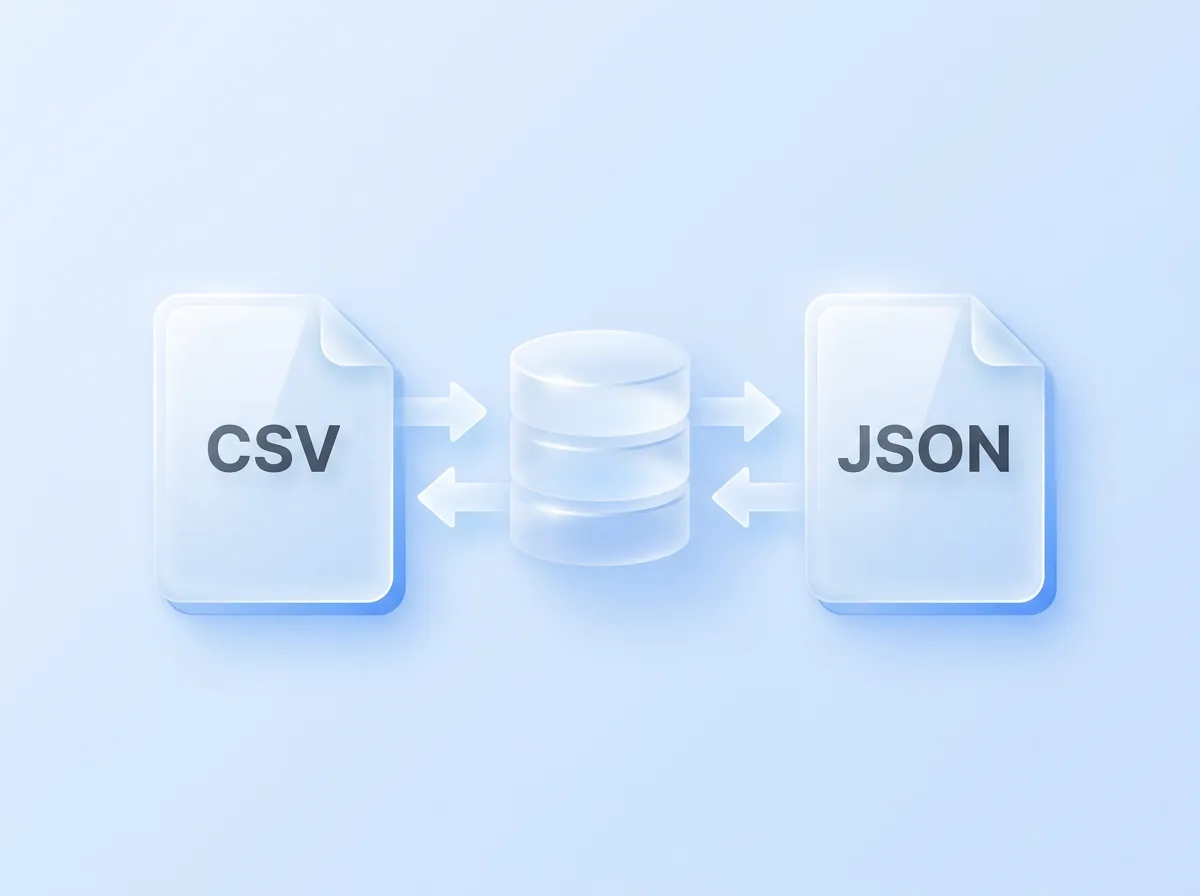
One owner on r/smallbusiness called a hard exit a warning sign. We agree. On every plan, one click downloads your records, documents and history as one JSON file.4
Questions about importing contacts
How do I import contacts into a CRM?
Save your list as a CSV, upload it and match each column to a field. In Zyflow, open Settings > Import and export, choose People or Companies, check the guessed mapping against the sample values, and click Import. Zyflow updates the records you already have and lists any row it won’t guess, by row number.
How do I avoid duplicates when importing contacts?
Include an email or phone column. Zyflow updates the person you already have when the email or phone matches and the names agree, or when the exact name matches and they aren’t at a different company. A row that could belong to more than one record is skipped and listed, so you can fix it before it turns into a duplicate.
Can I undo a CRM import?
In Zyflow, yes. The whole file is one change, so “Undo this import” removes the records it added and puts back the ones it updated, keeping fields someone has edited since. It works within your plan’s history window: 30 days on Free.1 For comparison, Pipedrive lets global admins revert an import within 48 hours (Pipedrive help center, checked Oct 3, 2026).
How many contacts can I import?
Up to 50,000 rows and 10 MB per file, within your plan’s record limit. On Free that’s 5,000 contacts, companies and deals together.3 A Company column also adds those companies, so a sheet can use more records than it has rows.
Can I import an Excel file, or straight from HubSpot or Pipedrive?
Not directly. Zyflow reads CSV files only and has no built-in connection to other CRMs. Save Excel files as CSV UTF-8, export people and companies from the other CRM as CSV files, then import each one, companies first. Deals and past activities don’t import, so your AI adds open deals when you mention them.
Will my AI see the contacts I import?
Yes. Every AI app you connect reads the same records, so Claude or Cursor can answer “What do we know about Northwind?” right after the import. Imported changes are labeled “CSV import” in History, not with an AI app’s name. Every member, and every member’s AI, can see and edit every customer. There are no per-person permissions yet.