A CRM with file storage your AI can search, file and tidy
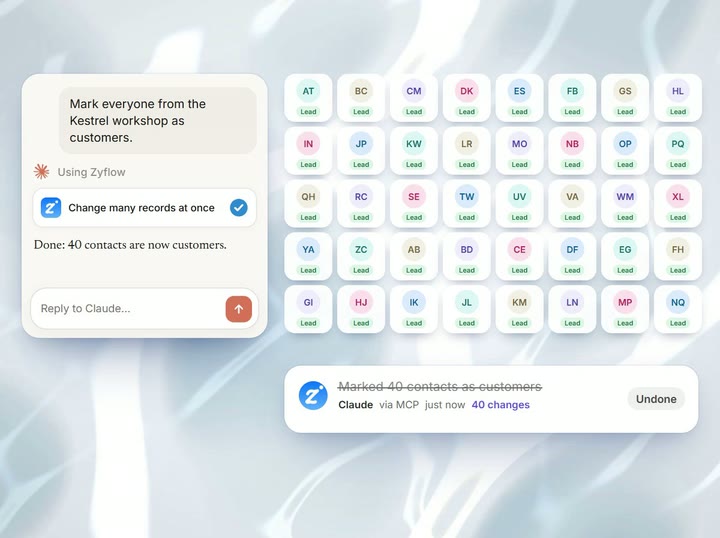
Quotes, contracts, photos and invoices live with the customer they belong to. Tell Claude, ChatGPT2 or Cursor “put the Northwind photos in their folder,” and your AI moves them as one change you can undo.1
Free plan. No card.
A CRM with file storage keeps each client’s files on their customer record, alongside their deals and follow-ups. Zyflow is a lightweight small-business CRM your AI app keeps up to date (Claude, Cursor, ChatGPT Business, any MCP app). Every AI change is labeled.
Files that live with the customer
The call with Maya Chen starts in 10 minutes, and the signed proposal is somewhere in an email thread, a Google Drive folder or a chat from March.
A CRM with file storage keeps quotes, contracts, invoices and photos on the customer or deal they belong to, so the proposal is on Maya’s record when you open it. In Zyflow, the AI app you already use can pull up that proposal before the call and file new documents when you ask. Each change it makes comes with an Undo.1
- Attach files to contacts, companies and deals. One file can link to all three.
- The file shows on that record’s page. A company page also shows its people’s files, so Northwind’s page includes what Maya sent you.
- When your AI looks up a customer, their latest files come back with the rest of the record. Ask “What do we know about Northwind?” and the signed proposal is listed beside the follow-ups and money owed.
That’s the everyday part of a CRM with document management, kept on the same records as the rest of your customer database. There’s no version history or OCR; the full list of limits is further down. Working alone? See how Zyflow works as a CRM for freelancers.
How do I get a file from my chat into Zyflow?
Your AI gives you a Zyflow upload link, already pointed at the right folder and customer, and you add the file there. AI apps usually can’t pass a file you attached in the chat on to a connected tool, so adding it is the one step you do yourself.
-
Attach the file in your chat and say “file this under Northwind.”
-
Your AI replies with a link. It opens Files with the upload box ready, pointed at Northwind’s folder and linked to Maya Chen or the deal.
-
Add the file. It lands in that folder, on that customer.
The link works only when you’re signed in to Zyflow. It isn’t public, so customers can’t use it to send you files. Files over 10 MB go in the same way, up to your plan’s largest file. If your AI wrote the file itself, such as call notes or a CSV, it can save it straight to the folder.
What your AI can do with your files
Your AI can search your files, save new ones up to 10 MB, and move, rename, describe or link up to 50 files as one change with an Undo.1 It can look at images up to 5 MB and read text files up to 1 MB. For PDFs and Office files, it gets the file’s details and a download link, but it can’t read the text inside.
Zyflow works with any AI app that supports MCP, the standard way AI apps connect to tools. Every MCP app you connect gets the same file tools, so a photo Claude filed this morning is there in Cursor tonight. Zyflow keeps the files, links them to customers and labels each change with the app that made it, so you can tell what Claude filed from what Dana uploaded herself. Using Claude? The Claude CRM page shows how to connect it.
What your AI can do
- Browse and search by name and description, filtered by type or customer.
- Save files up to 10 MB, creating any missing folders.
- Move, rename, describe, star or link up to 50 files in one change you can undo.1
- Move files to the trash, where they wait 30 days.
- Make folders. Asking for one twice doesn’t make a copy.
What your AI can do, by file type
| File type | Find it | File and link it | Your AI sees what’s inside | Opens in Zyflow’s preview |
|---|---|---|---|---|
| Images PNG, JPEG, GIF, WebP, AVIF (up to 5 MB) | Yes | Yes | Yes, as a picture | Yes |
| Text files txt, md, csv, json, xml, log (up to 1 MB) | Yes | Yes | Yes, as text | Yes |
| PDFs | Yes | Yes | No: name, details and a download link | Yes |
| Word, Excel and slides | Yes | Yes | No: name, details and a download link | Downloads |
| Audio, video, archives and other | Yes | Yes | No: name, details and a download link | Downloads |
Other image formats, and images or text files over these sizes, come back as details and a download link. Your AI app does the looking; Zyflow runs no AI.
Free plan. No card.
Start freeZyflow files every invoice and quote
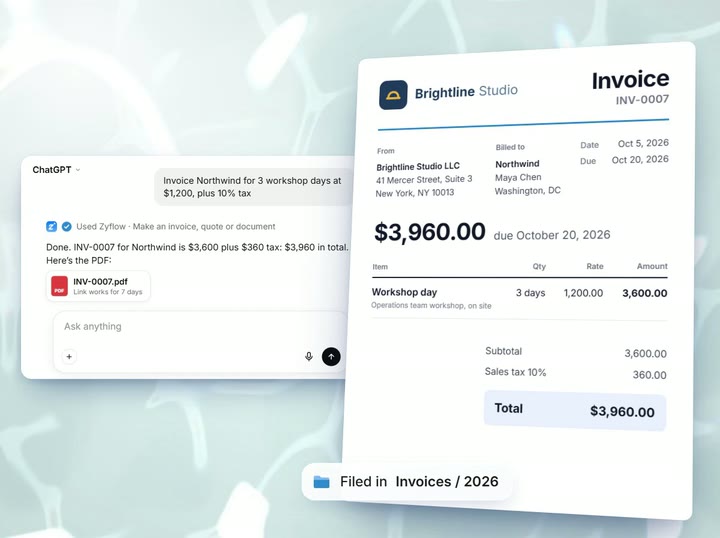
Zyflow saves every invoice and quote you or your AI make as a PDF in Invoices/2026 or Quotes/2026, by issue year, and links it to the customer. Letters go to a folder named after their template, under Documents. You don’t have to file any of them, and there’s no separate document management software to keep in step.
When a document changes, Zyflow makes a new PDF and moves the old one to the trash, so undoing the change brings it back.1 For numbering, totals and tax, see CRM with invoicing.
Folders, previews, starred and recent
You and your team see the same files in Zyflow’s web app. It works like the drive you already know, except each file can be linked to a customer or deal.
- Nested folders, up to 10 levels. A path like Clients/Northwind/2026 is created in one go.
- Drag and drop onto the page, a folder or a customer’s Files panel. Uploads run 3 at a time and keep going while you move around the app.
- Previews of images, PDFs and text files, showing who added each file (“Claude for Dana”) and its description.
- Typo-tolerant search across names and descriptions in every folder. Recent shows the last 50 files, and Starred keeps the ones you mark.
- A name that’s already taken becomes “name (2)”, so nothing is overwritten.
Deleted by mistake? Files wait 30 days in the trash
Restore the file from the trash. AI apps can only move files there, and files and folders wait in the trash for 30 days on every plan. Restoring a folder brings back exactly what was trashed with it, or puts it at the top level if its parent folder is gone. Each AI action is also one change in History, with an Undo.1
Your AI will get things wrong sometimes. If it trashes the whole Kestrel folder when you meant one draft, undo that change or restore the folder.
The trash counts toward your storage, so emptying it frees space.
See how undo worksHow much file storage is included?
Free includes 1 GB of file storage, Solo 10 GB, Team 50 GB and Pro 250 GB, with the trash included. Paid plans also take larger files.
File storage by plan
-
Free
1 GB Storage (trash included)25 MB Largest file -
Solo
10 GB Storage (trash included)100 MB Largest file -
Team
50 GB Storage (trash included)250 MB Largest file -
Pro
250 GB Storage (trash included)500 MB Largest file
- The trash counts toward storage, and so do the invoice and quote PDFs Zyflow makes.
- Files don’t count toward your record limit.
- Through your AI, one file can be up to 10 MB on every plan. Bigger files go in through an upload link or the web app.
- When storage is full, uploads stop, with a message showing how much space is used and how much is in the trash. Your files stay viewable and downloadable. A new invoice still saves, but its PDF waits until there’s space.
What the files drive doesn’t do
It’s a drive linked to your customers. If you need a full document management system, check this list first:
- Through Zyflow, your AI can’t read the text inside PDFs, Word or Excel files.
- No OCR and no search inside documents. Search covers names and descriptions.
- No version history. A replaced invoice or quote PDF waits in the trash for 30 days, and that’s the only older copy kept.
- No editing or co-editing. Zyflow stores files; you edit them in their own apps.
- No client portal, shared folders or public upload links.
- No virus scanning.
- No folder upload, no bulk zip download, and no Google Drive or Dropbox sync.
- No per-folder or per-person access to files. Every member, and every member’s AI, can see every file.
Not a fit if...
Zyflow isn’t a fit yet if you need:
- email or calendar sync, sequences, campaigns, dialers or forecasting
- dispatch, booking or texting for trades and field service
- a home for regulated data, such as patient records
- property listings and showings for real-estate work
- a WhatsApp inbox
- card payment collection or e-signature
- SSO, two-factor sign-in or per-person permissions
- certifications such as SOC 2, or EU data residency
- a native mobile app, or a language other than English
- more than 30 people
It’s also not for you if you don’t use an AI app and don’t plan to.
Frequently asked questions
How much file storage does Zyflow include?
Free includes 1 GB, Solo 10 GB, Team 50 GB and Pro 250 GB, trash included. The largest file is 25 MB on Free, 100 MB on Solo, 250 MB on Team and 500 MB on Pro. Invoice PDFs count toward storage, and files don’t count as records.
Can my AI read the PDFs and contracts I store?
Not through Zyflow. For a PDF, Word or Excel file, your AI gets the file’s name, folder, description, linked customer and who added it, plus a download link. It can look at images up to 5 MB and read plain-text files up to 1 MB. Add a one-line description to each contract so search can find it by what it’s about.
Do I still need Google Drive or Dropbox?
Maybe. For large archives, a general drive is cheaper per gigabyte. Zyflow’s files drive is for files that belong to a customer, the ones your AI and your team need next to the record. Zyflow doesn’t sync with Google Drive or Dropbox, so keep the two separate: the archive there, the client files here.
What kinds of files can I store, and how big?
Any type, up to your plan’s largest file (25 MB on Free). Files your AI saves can be up to 10 MB. Images, PDFs and text files preview in the browser; everything else downloads.
Can my clients see or upload files?
No. There’s no client portal, shared folders or public upload links. For a PDF or other document, your AI can give you a download link that works for 7 days, which you forward yourself. Zyflow sends nothing to your customers. Anyone with that link can open the file, and it can’t be canceled before it expires.
Is it safe to keep client files in Zyflow?
Zyflow limits how a stored file can open. Only images, PDFs and plain text open in the browser, each in a locked-down viewer. HTML, SVG and everything else download instead, so a file someone sends you isn’t run as a web page inside Zyflow. Access is checked file by file, and file text reaches your AI labeled as customer data, not instructions. There’s no virus scanning, and Zyflow doesn’t hold security certifications such as SOC 2 today.
How do I get my files out?
Download any file from Files. Your export lists every file with a link, alongside your records, documents and history.3 There’s no bulk zip download yet.
Which AI apps can use my files?
Claude on every plan, Claude Code, Cursor, VS Code, Gemini CLI, Windsurf and any MCP app. Changing files from ChatGPT needs developer mode on Business, Enterprise or Edu.2 The ChatGPT CRM page covers ChatGPT setup, and the CRM MCP server page explains how the connection works.
- 1 Undo works within your plan’s history window: 30 days on Free, up to 3 years on paid plans. Deleted items can be restored for 30 days on every plan. Settings changes, such as pipelines, custom fields and tag renames, are logged but can’t be undone.
- 2 Writing to Zyflow from ChatGPT needs developer mode on a ChatGPT Business, Enterprise or Edu plan. It’s in beta, on the web, and an admin switches it on. Claude works on every plan. Checked October 2026.
- 3 Export gives you six CSV files, or one JSON file with your records, documents, change history (up to 100,000 changes) and links to every file. File contents download separately from Files.
Last updated Oct 3, 2026
Your AI talks. Zyflow remembers.
Tell your AI what happened. Zyflow keeps the record.
If your AI gets something wrong, undo it.1 If Zyflow isn’t for you, export your records, documents and history.3
Free plan. No card. Connect your AI in about two minutes.