Let your AI update your CRM. Undo what it gets wrong.1
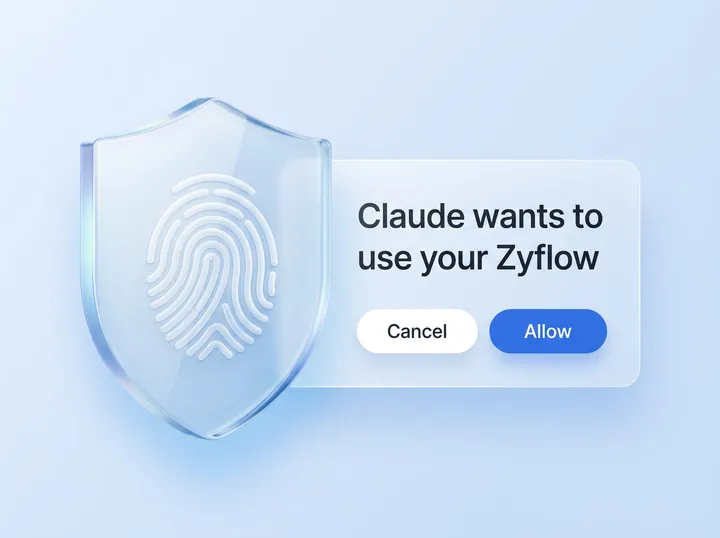
Say yes to write access. Every AI change names the app that made it, and one click takes it back, even when your AI edits 40 contacts at once.
Free plan. No card.
Zyflow is a lightweight small-business CRM your AI app keeps up to date (Claude, Cursor, ChatGPT Business, any MCP app). Every AI change is labeled. Zyflow works with any AI app that supports MCP, the standard way AI apps connect to tools.
Your AI will get things wrong sometimes. Plan for that.
Yes, you can undo AI changes in Zyflow. Every change Claude, ChatGPT2 or another AI app makes is labeled with the app that made it. Each thing your AI does is one change, and one click undoes it, even 40 contacts edited at once, within your plan’s history window.1
The fear with any shared CRM is a bad change you can’t roll back, made by someone you can’t identify. In Zyflow, every change names who made it, and each change to your records has an Undo beside it.1
Watch an undo
One AI mistake, start to finish: Claude changes 40 contacts in one go, and one click puts them all back.
Each action your AI takes is one change with one Undo. Anyone who can edit can press it, on every plan, Free included.
-
Ask
Dana tells Claude: “Mark everyone from the Kestrel workshop as customers.” Claude shows the preview first: 40 contacts and the first 10 names.
-
Approve
She says yes. Her open Zyflow tab shows a toast with Claude’s logo and an Undo.
-
Spot the mistake
Then she remembers only 12 of them signed. In History, on the AI apps tab, Claude’s entry reads “40 changes”, with an Undo.
-
Undo
She clicks Undo, and all 40 contacts go back to what they were. The entry is struck through, and the undo shows up as a change of its own.
-
Undo the undo
If you ever undo the wrong thing, undo the undo, and all 40 changes come back.
What does Undo take back?
One undo takes back everything a single action did. A new record is removed, edited fields go back, a deleted record returns from the trash, a merge comes apart and a folder comes back with its contents.1
Edits to documents, templates and your business profile go back too. Undoing the newest invoice also frees its number, so your invoice numbers have no gaps.
If someone edited it since
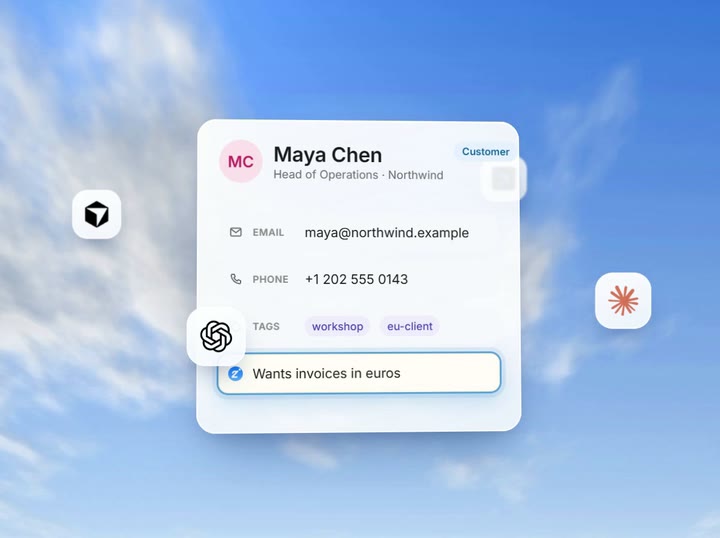
Say Claude changed Maya Chen’s title and phone, and later you fixed the phone. Undo puts the old title back, keeps your phone number and says “kept newer …”. If every field has changed since, it reverts nothing and says: “Every field changed again since …, so nothing was reverted.”
Changes by people, scripts and imports
You can also undo changes that people and scripts made. A form save, one REST request and a whole CSV import are each one undo, so a bad import goes back in one click.
Settings are the exception. They’re logged, but Undo skips them and says: “This kind of change (settings) is not undoable; change it back by hand.”
See what can’t be undoneWho changed this, and through which app?
Every change in Zyflow names who made it and how: a teammate, an AI app (“Added by Claude via MCP, 2 min ago”), an API key by its own name, or a CSV import. An AI app works for the person who connected it, with that person’s role, so a quote Dana’s Claude makes reads “Claude for Dana”.
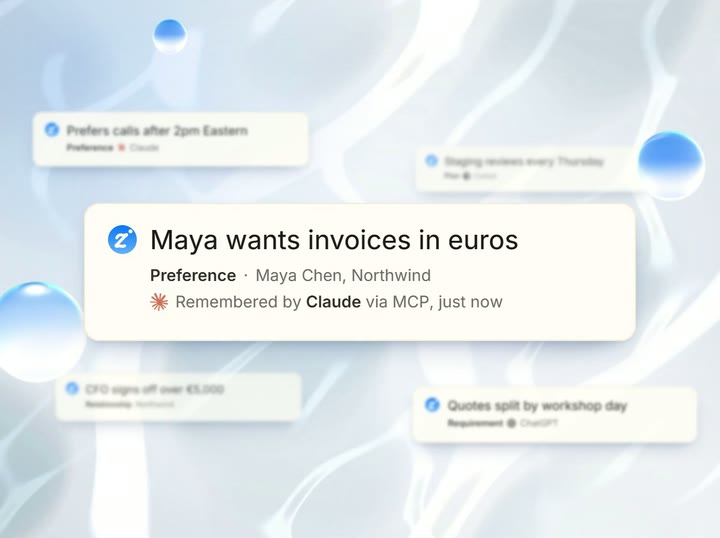
- Facts carry their source too (“Remembered by Claude via MCP”), so you know whether a detail came from you, a teammate or an AI before you rely on it. See how memory works.
- Zyflow shows the real logo for 10 AI apps.
- Working with an assistant? Their edits in the app show on History’s People tab. More in Zyflow for consultants.
An AI app's name in Zyflow is the one the app gives when it connects.
Where to see what your AI changed
Open History and choose AI apps. For the last 24 hours, check “What your AI did” on Today, or ask your AI what it changed. It can list its own changes and undo one when you ask.
History
History has tabs for Everything, AI apps, People, API and Imports, with the newest changes first. Open an entry to see its changes, each linked to its record. Every entry has an Undo, and every contact, company and deal has a “Changes to this record” panel.
Ask your AI
-
“What did you change since this morning?”
-
“Undo what you just did.”
-
“Show me everything Claude changed on Northwind this week.”
Your AI’s history tool looks back 30 days by default and says which changes can still be undone.
Building with scripts? Use the history and undo endpoints of the REST API, or read the CRM MCP server page.
The app shows a summary of each change. Field-by-field before and after values are in the JSON export.
Free plan. No card.
Start freeIs Zyflow’s History an audit log?
For a small team, yes. History records every write by a person, AI app, API key or import. It also logs settings events, such as connecting an app, creating an API key or changing someone’s role. It isn’t a certified compliance log, though: reads aren’t recorded, and you can see and undo changes only within your plan’s history window.
- CRM change history What changed on one record, and when.
- CRM audit log (some call it an audit trail) Who did what across your whole business.
- Undo Putting it back.
In Zyflow, History covers all three.
Zyflow doesn't hold security certifications such as SOC 2 or ISO 27001 today, and doesn't offer two-factor sign-in or SSO yet.
Read the security pageWhat your AI did, at a glance
“What your AI did” on Today lists the last 24 hours, one line per AI app, busiest first: “Claude · added 3 contacts, logged 2 calls, created 1 invoice”. Each line shows the app’s logo, “via MCP” or “via API”, a count and when it last acted. Open one to see up to 20 changes, each with an Undo.
Reading it takes about a minute. Your AI gets the same recap when you ask it to plan your day, and anything older is in History.
Watch changes arrive while you talk
Keep a Zyflow tab open while you talk, and each change appears as a toast with the app’s logo and an Undo. Changes a few seconds apart fold into one toast (“Claude made 4 changes”) with a Review link. Teammates’ changes, new AI connections and finished imports show up too. You can turn AI toasts off device by device.
Live labels and Undo buttons appear in any open Zyflow tab. Every change is also in History.
Safe by default
Some guardrails work before you ever need Undo.
-
AI apps can only move things to a 30-day trash, and no AI tool empties it.
-
Issued invoices and quotes can only be voided.
-
Bulk changes preview first and stop at 200 records.
-
A read-only API key, or an app that asked only to read, is refused before any write runs.
-
Undo, deletes, merges and bulk changes are marked as risky, so your AI app can ask you before running them.
Matching heads off some mistakes before they happen: see how the customer database finds the record you already have instead of making a copy.
API keys, not AI apps, can permanently delete trashed files, and people can empty the Files trash. Records have no trash page; restore a deleted contact by undoing the delete in History.
How far back can you undo?
Free shows and undoes the last 30 days. Solo goes back 1 year, Team 2 years and Pro 3 years. Deleted items stay in the trash for 30 days on every plan, so a delete can be undone only within 30 days, even on Pro.
History and trash by plan
-
Free
30 days History shown and undoable -
Solo
1 year History shown and undoable -
Team
2 years History shown and undoable -
Pro
3 years History shown and undoable
- Deleted items kept in the trash: 30 days on every plan
- Export with history: included on every plan
That change is older than this plan's 30-day history and can't be undone.
What can’t be undone
Undo covers changes to your records, files and documents. It doesn’t cover these:
- Settings: pipelines and stages, custom fields, tag renames and deletes, workspace settings, members and roles, and the plan. They’re logged; change them back by hand.
- Connecting or disconnecting an AI app, or creating or revoking an API key. These are logged but can’t be undone.
- Anything deleted more than 30 days ago, on any plan.
- Files emptied from the Files trash, or deleted for good with an API key.
- Changes older than your plan’s history window.
- Anything your AI app did outside Zyflow, such as an email it sent through another connector. Zyflow itself sends nothing to your customers.
- Deleting a workspace or an account, which is immediate and permanent.
Export your records, documents and history any time.3
Not a fit if...
Zyflow isn’t a fit yet if you need:
- email or calendar sync, sequences, campaigns, dialers or forecasting
- dispatch, booking or texting for trades and field service
- a home for regulated data, such as patient records
- property listings and showings for real-estate work
- a WhatsApp inbox
- card payment collection or e-signature
- SSO, two-factor sign-in or per-person permissions
- certifications such as SOC 2, or EU data residency
- a native mobile app, or a language other than English
- more than 30 people
It’s also not for you if you don’t use an AI app and don’t plan to.
Questions about history and undo
Can I undo something my AI did last week?
Yes, on every plan: even Free shows and undoes the last 30 days. Deleted items, though, stay in the trash for only 30 days, so restore them within that time. Read the privacy policy for how long history is kept.
What if I changed the same field after my AI did?
Your edit stays. Undo puts back only the fields that still hold your AI’s value and lists the rest as “kept newer”.
Can I undo an undo?
Yes. An undo is a change of its own, with its own Undo, so undoing it brings the original change back.
Can my AI undo its own mistake?
Yes, when you ask: “Undo what you just did.” Each change your AI makes returns a change ID it can undo. Zyflow never reverts anything on its own.
Who on my team can undo changes?
Anyone who can edit, and their AI apps. Read-only API keys, and apps that asked only to read, can’t. Every member, and every member’s AI, can see and edit every customer. There are no per-person permissions yet.
Can I see what my AI read, not just what it changed?
No. Zyflow doesn’t record reads. It logs which tools each AI app ran, for 90 days, but not what the app looked at.
Is my history included when I export?
Yes, on every plan. The JSON export holds up to 100,000 changes, with before and after values. Files are listed with links; download their contents from Files.
Does undo work for ChatGPT, Cursor and other apps?
Yes. Every connected app’s changes are labeled and can be undone the same way. Claude works on every plan; ChatGPT writes only on Business, Enterprise or Edu plans in developer mode. More on the Claude CRM and ChatGPT CRM pages.
- 1 Undo works within your plan’s history window: 30 days on Free, up to 3 years on paid plans. Deleted items can be restored for 30 days on every plan. Settings changes, such as pipelines, custom fields and tag renames, are logged but can’t be undone.
- 2 Writing to Zyflow from ChatGPT needs developer mode on a ChatGPT Business, Enterprise or Edu plan. It’s in beta, on the web, and an admin switches it on. Claude works on every plan. Checked October 2026.
- 3 Export gives you six CSV files, or one JSON file with your records, documents, change history (up to 100,000 changes) and links to every file. File contents download separately from Files.
Last updated Oct 3, 2026
Your AI talks. Zyflow remembers.
Tell your AI what happened. Zyflow keeps the record.
If your AI gets something wrong, undo it.1 If Zyflow isn’t for you, export your records, documents and history.3
Free plan. No card. Connect your AI in about two minutes.