What you need before you start
You need VS Code 1.99 or later and access to GitHub Copilot, because MCP tools run in agent mode in VS Code’s Chat view. If your company gives you Copilot Business or Enterprise, an admin has to turn on the “MCP servers in Copilot” policy, which is off by default (GitHub Docs, checked Oct 3, 2026). You also need a Zyflow account. A Free account works, you can create one during sign-in in Step 2, and it needs no card.
- GitHub says the policy doesn’t apply to Copilot Free, Pro, Pro+ or Max.
- Zyflow is a remote server, so you don’t install Node, Docker or anything else on your computer.
- Your company can also limit MCP through VS Code’s own settings. See Troubleshooting.
Can’t use MCP in VS Code at work? See all AI apps
Step 1: Install Zyflow in VS Code with one click
Click Install in VS Code on the computer where VS Code is installed. Your browser asks to open VS Code, and VS Code then shows the server it’s about to add: zyflow, type http, at your Zyflow link. Choose Install. The link holds just that name, type and URL. There’s no password or key in it.
Opens VS Code and adds Zyflow. Sign in and approve when it asks.
What the one-click install sends
The button is a vscode:mcp/install link, the format VS Code documents, built from this JSON:
{"name":"zyflow","type":"http","url":"https://app.zyflowcrm.com/mcp"}Using VS Code Insiders? Use the same link with vscode-insiders: in place of vscode:.
Visual Studio, the Windows IDE, is a different product, and this guide doesn’t cover it. See the setup for any MCP app.
Or add the MCP server to mcp.json by hand
VS Code reads MCP servers from .vscode/mcp.json in your project. To have the server in every project, add it to your user configuration instead (run MCP: Open User Configuration). Add Zyflow under “servers” with “type”: “http” and your Zyflow link. The link is the same for everyone and holds no secret, so you can commit the file. Each teammate signs in with their own account.
{
  "servers": {
    "zyflow": {
      "type": "http",
      "url": "https://app.zyflowcrm.com/mcp"
    }
  }
}A remote VS Code MCP server usually needs only these three things: a name, “type”: “http” for Streamable HTTP, and the URL. To use the menus instead, run MCP: Add Server, choose HTTP, paste your Zyflow link and name it zyflow.
If you use the portable .mcp.json file at your project root, the key is “mcpServers” instead of “servers”.
Step 2: Start the server, sign in and approve
Start the server from MCP: List Servers, and VS Code opens your browser at Zyflow’s sign-in page. Log in or create a free account, pick the one workspace VS Code may use, and choose Approve. You type your password in the browser, so VS Code never sees it.
-
Run MCP: List Servers, choose zyflow, then Start. Or use the Start link above the entry in mcp.json.
-
If VS Code asks whether you trust the server, check that the URL is your Zyflow link, then trust it.
-
In the browser, log in or create a free account (no card).
-
On “VS Code wants to use your Zyflow”, choose one workspace, then choose Approve.
Behind the scenes:
- Sign-in uses OAuth 2.1 with PKCE. VS Code registers itself with Zyflow, so there’s no client ID to paste.
- The approval request expires after 10 minutes. Each connection reaches one workspace, with read and write access.
- History records “Connected VS Code (read and write)”. If Zyflow’s Connect page is open, it shows “VS Code is connected.”
Step 3: Use Zyflow’s MCP tools in VS Code agent mode
In the Chat view, choose Agent from the agent picker, open Configure Tools and check that Zyflow’s 32 tools are on. Then ask in plain words. VS Code asks before it runs each tool, until you allow that tool for the session, the workspace or always.
Try it right after a client call, while VS Code is still open:
- Add Maya Chen from Northwind as a customer. Her email is maya@northwind.example.
- Log a call with Maya at Northwind. She wants the revised quote by Friday.
- What do we know about Northwind?
- What’s on my plate today?
Zyflow saves Maya to the record you already have, or creates one, and labels the change “Added by VS Code via MCP”. For the call, your AI reads back the follow-up date Zyflow saved, such as Fri, 9 Oct, so you can check it.
Connect Claude or Cursor to the same workspace and they see the same records, so you don’t re-explain a client when you switch apps. Read the Cursor setup guide.
Which Zyflow tools to allow without asking
Allow the 13 tools Zyflow marks read-only. Approve the 14 write tools one use at a time until you trust them, and approve the 5 tools marked destructive every time. VS Code lets you approve a single use, or allow a tool for the session, the workspace or all future uses.
| Tools | What they do | Suggested approval |
|---|---|---|
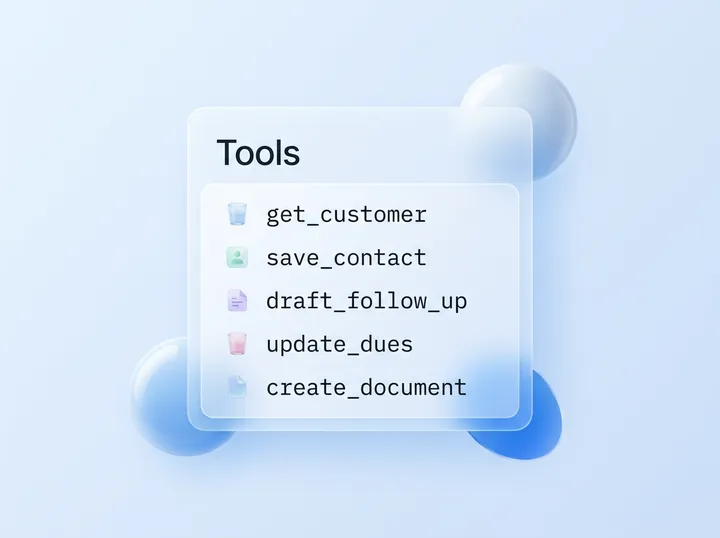
| 13 read tools: search, fetch, get_customer, list_records, get_briefing, describe_workspace, get_history, list_files, get_file, upload_link, list_documents, get_document, list_templates | Look things up. Marked read-only | Allow for the session or the workspace |
| 14 write tools: save_contact, save_company, save_deal, remember, log_activity, save_task, update_dues, save_file, organize_files, create_folder, update_business_profile, create_document, update_document, save_template | Add and update records, files and documents. Every change is labeled VS Code, with an Undo1 | Approve single uses at first, then allow for the session |
| 5 tools marked destructive: bulk_update, merge_records, delete_record, undo, delete_files | Bulk edits, merges, undo and moves to the trash | Approve each use |
We don’t recommend Allow all or Autopilot for a server that writes to your customer records. The destructive five have limits of their own: delete_record and delete_files only move things to the trash, where they can be restored for 30 days, and bulk_update previews its changes by default and stops at 200 records.
Opens VS Code and adds Zyflow. Sign in and approve when it asks.
Connect read-only with an API key
To connect VS Code read-only, create a read-only API key on Zyflow’s Connect page and send it as a header instead of signing in. Signing in through the approval screen gives read and write access. Use an input variable so the key isn’t saved in the file. VS Code can then search and read, but Zyflow refuses any write.
{
  "inputs": [
    {
      "type": "promptString",
      "id": "zyflow-key",
      "description": "Zyflow read-only API key",
      "password": true
    }
  ],
  "servers": {
    "zyflow": {
      "type": "http",
      "url": "https://app.zyflowcrm.com/mcp",
      "headers": {
        "Authorization": "Bearer ${input:zyflow-key}"
      }
    }
  }
}On the Connect page, under API keys, choose New API key, then Read only. VS Code asks for the key the first time the server starts and stores it securely (VS Code docs, checked Oct 3, 2026). A write gets HTTP 403 insufficient_scope before the tool runs. A read-only key can still export your data, so keep it private.
Troubleshooting
If Zyflow isn’t working in VS Code, run MCP: List Servers and choose zyflow. Start runs the server, and Show Output opens its log. The usual causes are an install link that doesn’t reach VS Code, a server that hasn’t started, or a company policy that blocks MCP.
| Symptom | Why it happens | Fix |
|---|---|---|
| The install link does nothing | Your browser blocked vscode: links, VS Code isn’t on this computer, or you use VS Code Insiders | Add the server to .vscode/mcp.json by hand (Step 1) |
| No sign-in window opens | The server hasn’t started | Run MCP: List Servers, choose zyflow, then Start. If it fails, check Show Output |
| Zyflow says “This connection request has expired” | More than 10 minutes passed before you approved | Start the server again in VS Code and approve within 10 minutes |
| Zyflow’s tools aren’t in chat | Chat isn’t in agent mode, or the tools are off | Choose Agent in the agent picker, then turn Zyflow on in Configure Tools |
| “Cannot have more than 128 tools per request” | VS Code allows 128 tools per request, and Zyflow adds 32 | Turn off servers or tools you don’t need in Configure Tools |
| MCP is blocked by your organization | The “MCP servers in Copilot” policy is off, chat.mcp.access is set to registry or none, or an allow list leaves Zyflow out | Ask your admin to turn on the policy or allow your Zyflow link (allow lists can match a server URL) |
| VS Code reaches the wrong workspace | You picked a different business on the approval screen | Disconnect VS Code on Zyflow’s Connect page, start the server again and pick the right workspace |
| Writes fail with insufficient_scope | You connected with a read-only API key | That’s how read-only works. For read and write, remove the headers block and sign in instead |
| The tool list looks out of date | VS Code cached an older list | Run MCP: Reset Cached Tools |
| VS Code asks whether to trust the server | It’s the first start, or the configuration changed | Check that the URL is your Zyflow link, then trust it. MCP: Reset Trust clears earlier choices |
| You want VS Code to ask before every tool again | Your approvals were saved | Run Chat: Reset Tool Confirmations |
Spot an error? Tell us
Questions about VS Code and Zyflow
Do I need GitHub Copilot to use MCP servers in VS Code?
Yes. GitHub lists Copilot access and VS Code 1.99 or later as the requirements. If your company gives you Copilot Business or Enterprise, an admin also has to turn on the “MCP servers in Copilot” policy, which is off by default (GitHub Docs, checked Oct 3, 2026).
Can I commit .vscode/mcp.json to my repo?
Yes, for the sign-in version. Your Zyflow link holds no secret, and each teammate signs in with their own account. Never commit an API key. Use an input variable, as in the read-only setup.
Does Zyflow see my code?
Not unless your code is part of a Zyflow tool call. Zyflow receives only what VS Code sends in those calls, such as a name to look up or a call to log, and not the rest of your chat. Code gets there when, for example, you ask the agent to save a file to Zyflow. Zyflow’s tool-call log records which tool ran, not what was sent. What VS Code and your model provider see is covered by their own terms. Zyflow runs no AI model and doesn’t train one on your data.
What if agent mode changes the wrong record?
Open History, find the change labeled VS Code and choose Undo. Each thing your AI does is one change, and one click undoes it, even 40 contacts edited at once.1 AI apps can only move things to the 30-day trash. Your AI will get things wrong sometimes. Plan for that.
Does connecting VS Code cost anything?
Not from Zyflow. The Free plan needs no card, and VS Code’s calls to Zyflow are never billed on any plan.2 Your Copilot plan’s own limits still apply. See pricing.
Can teammates use the same config?
Yes. Each teammate starts the server, signs in with their own login and approves the same workspace. Their changes then show as “VS Code for Dana”. Teammates must be members of your workspace, and Free is for one person, so adding people needs a paid plan. Every member, and every member’s AI, can see and edit every customer. There are no per-person permissions yet.
How do I disconnect VS Code?
On Zyflow’s Connect page, find VS Code under Connected apps and choose Disconnect. Access ends right away, and History records the disconnect. Then remove the server in VS Code from MCP: List Servers, or delete it from mcp.json.
One workspace per connection
You sign in and approve, like “Sign in with Google”. Your AI app never gets your password, and it can’t touch billing, members or keys.
Every AI change labeled
Export any time