Which Claude are you adding it to?
There are three ways to add an MCP server to Claude, depending on which Claude you use and where the server runs. A hosted server with an https link goes into claude.ai as a custom connector. Claude Code takes one command. A server that runs as a program on your own computer goes into Claude Desktop.
| You use | Do this | Where to go |
|---|---|---|
| claude.ai, with a hosted server URL | Add a custom connector. No code | Steps 1 to 4 below |
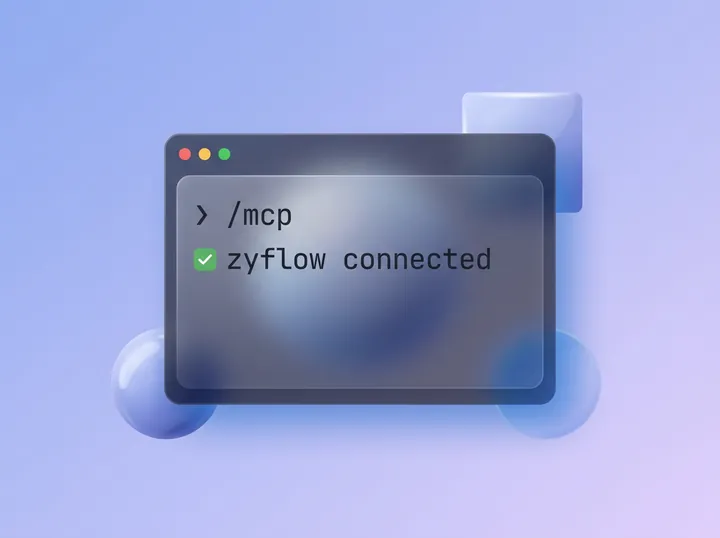
| Claude Code | Run one command: claude mcp add --transport http zyflow https://app.zyflowcrm.com/mcp, then type /mcp to sign in | Read the Claude Code setup guide |
| A server that runs on your own computer | Claude Desktop’s local config file, or a desktop extension | Read the guide to local MCP servers |
Claude Desktop’s config file starts programs on your computer. A hosted server like Zyflow goes in as a custom connector instead, so you have no file to edit and nothing to install.
Before you start
Custom connectors work on Claude Free, Pro, Max, Team and Enterprise. Claude Free allows one custom connector. On Team and Enterprise, an Owner or Primary Owner adds it for everyone (Enterprise can also give that right to a custom role). Members then connect it from Customize > Connectors and sign in with their own account. Source: Claude Help Center, checked Oct 3, 2026.
Model Context Protocol (MCP) is the standard way AI apps connect to tools. Claude calls a hosted MCP server a custom connector.
You also need:
- The server URL. A remote MCP server for Claude needs a public link that starts with https. Zyflow’s ends in /mcp.
- If you’re adding Zyflow, a free Zyflow account. It needs no card.
Step 1: Copy your Zyflow link
This is the server URL you paste into Claude in Step 3.
https://app.zyflowcrm.com/mcp It’s the same link for everyone. The first time, your AI app asks you to sign in and approve one workspace.
Adding a different remote MCP server? Copy its URL instead. Steps 3 and 4 work the same way; only the sign-in page you see in Step 4 changes.
Step 2: Create your free Zyflow account or log in
Do this before you open Claude, in the browser you’ll use for claude.ai, so you’re already signed in when Claude sends you to Zyflow in Step 4. You land on Zyflow’s Connect page with Claude’s steps open, and it shows “Waiting for Claude to connect. This page updates by itself.” Leave the tab open. It changes to “Claude is connected.” as soon as you finish Step 4.
Already have an account? Log in
If you start in Claude without a Zyflow account, the sign-in window opens on a “Welcome back” log-in screen instead of sign-up. That’s the other reason to do this step first.
Step 3: Add Zyflow as a Claude custom connector
In claude.ai, open Customize > Connectors and add a custom connector with your Zyflow link. Claude detects the sign-in settings, and for Zyflow you keep them.
-
In claude.ai, open Customize, then Connectors.
-
Click “+ Add”, then “Add custom connector”. Some accounts show Add, then Custom, then Web instead.
-
Name it Zyflow.
-
Paste your Zyflow link and click Continue.
-
Authentication: keep the settings Claude detects and choose “Sign in now”.
-
OAuth client: keep “Use Claude’s published identity (Recommended)”.
-
Request headers: leave them empty.
-
Click Add.
Claude reminds you that custom connectors aren’t verified by Anthropic. That’s normal for any connector you add by link. Before you approve, Zyflow’s approval screen in Step 4 lists what Claude will be able to do.
On Claude Team or Enterprise
An Owner or Primary Owner adds Zyflow once, in Organization settings > Connectors > Add > Custom > Web. Each member then finds it in Customize > Connectors, clicks Connect and signs in to Zyflow with their own login, so each change carries that person’s name, such as “Claude for Dana”. Each member also needs to be a person in your Zyflow workspace, and Zyflow Free covers one person.
Step 4: Sign in and approve one workspace
After you click Add, Claude opens Zyflow’s sign-in page in your browser. If you did Step 2 in the same browser, you go straight to the approval screen. Pick the one workspace Claude may use and click Approve.
What you see on the approval screen:
- “Claude wants to use your Zyflow” at the top.
- “Verified app from” and Claude’s web address, when Claude connects with its published identity.
- “After you approve, you’ll go back to” and the address you’ll return to.
- “It will be able to”, then what Claude may do, in plain words: read contacts, companies, deals, notes, memories and tasks; add and update records, log activity, remember facts and create tasks.
- Your workspaces, each with your role, and “already connected” next to any workspace Claude already reaches.
- Deny and Approve.
Zyflow then shows “Connected” and takes you back to Claude. The Connect page now says “Claude is connected.” and History records “Connected Claude (read and write)”.
No workspace yet? You’ll see “One step before Claude”. Click “Create my workspace”, name your business, and you return to this screen.
It works like “Sign in with Google”. Claude never sees your Zyflow password, and it can’t reach billing, members or API keys.
Does it work in Claude Desktop, mobile and Claude Code?
You add the connector once, on claude.ai. Anthropic says connectors added there are available in Claude’s iOS and Android apps the next time you log in. We’re still testing Zyflow in Claude Desktop and the Claude mobile apps, and we’ll update this page when those tests are done.
Claude Code connects to Zyflow with one command.
Check it worked
After you connect a CRM to Claude, test a write as well as a lookup. Start a new chat, open the + menu, choose Connectors and check that Zyflow is switched on. Then send these prompts one at a time:
- Add Maya Chen from Northwind as a customer. Her email is maya@northwind.example.
- Remember that Northwind wants the revised quote by Friday.
- Remind me to follow up with Maya on Friday.
- What’s on my plate today?
What you should see: Claude reads back the date it saved, such as Fri, 9 Oct. Open Zyflow and go to Maya Chen. The contact, the fact and the follow-up each show “Added by Claude via MCP”. Live labels and Undo buttons appear in any open Zyflow tab. Every change is also in History.
Now send this:
- Undo what you just did.
Claude undoes its last change, and the follow-up disappears from Maya’s page. Each thing Claude does is one change, and one undo reverses it.1
Tip: to tell Claude how you work without repeating it in every chat, write Notes for your AI in Zyflow, then start a new chat. Your notes reach Claude when it connects.3
Free plan. No card.
Choose what Claude can do without asking
To make Claude ask before it changes anything, open Customize > Connectors, select Zyflow and set the tools that write to Needs approval. Tools that only read can stay on Always allow. To stop changes completely, set the write tools to Blocked (Claude Help Center, checked Oct 3, 2026).
Zyflow tells Claude which of its tools read and which write, and marks five as destructive, such as deleting a record or merging duplicates.
Whatever you choose in Claude, Zyflow applies the same guardrails to every write. When a name could mean two people, Zyflow has Claude ask you which one you mean.4 AI apps can only move things to the 30-day trash. Bulk changes run as a preview unless Claude confirms them, and stop at 200 records. Every change is labeled, with an Undo.1
How to give Claude read-only access
Zyflow’s approval screen has no read-only switch. It grants what Claude asks for, which is read and write. The simple route: set Zyflow’s write tools to Blocked in Claude. Claude enforces that setting on its side, and lookups still work.
Disconnect Claude or switch workspaces
You can disconnect from either side. In Claude, remove the connector. In Zyflow, disconnect Claude on the Connect page, which cuts off its access right away.
In Claude
Open Customize > Connectors, select Zyflow and choose Remove (it’s also in the three-dot menu). A custom connector can’t be edited, so to change its settings, remove it and add it again.
In Zyflow
On the Connect page, under Connected apps, click Disconnect. Every token Claude holds stops working at once, and History records “Disconnected Claude”. You can’t undo a disconnect, but you can connect again any time. Members can disconnect their own apps; owners and admins can disconnect anyone’s.
Switch workspaces
One connection reaches one workspace. To switch, disconnect in Zyflow, then in Claude’s Connectors connect Zyflow again and pick the other workspace before you approve. The approval screen preselects a workspace (the one already connected, or else your first), so check it before you click Approve. One Zyflow login can own up to 10 workspaces.
Troubleshooting
Check three things first: the connector menu is under Customize, not Settings; Claude Free allows one custom connector; and an approval expires after 10 minutes.
| Symptom | Fix |
|---|---|
| No “Add custom connector” option | Look under Customize > Connectors, not Settings. Some accounts show Add > Custom > Web. On Claude Team or Enterprise, ask an Owner |
| Claude Free won’t add another connector | Claude Free allows one custom connector. Remove the one you have, or move to a paid Claude plan |
| Claude can’t reach the server | Claude connects from Anthropic’s cloud, not your computer, so the URL must be public and start with https. A localhost server needs Claude Desktop’s local config |
| “This connection request has expired” | Approval requests last 10 minutes. In Claude, connect Zyflow again |
| A “Welcome back” log-in screen, but you have no Zyflow account | Do Step 2 first, then connect again in Claude |
| Connected to the wrong workspace | Disconnect in Zyflow, connect again and pick the right one |
| Claude doesn’t use Zyflow | Switch Zyflow on under + > Connectors in the chat, or name it in your message: “Use Zyflow to...” |
| Claude asks permission for every lookup | Set Zyflow’s read tools to Always allow |
| You don’t see the change in Zyflow | Live labels only show in an open Zyflow tab. Check History, and check that you’re in the workspace you approved |
Questions
Can I add a Claude custom connector on the Claude Free plan?
Yes. Claude Free allows one custom connector, so Zyflow or any other remote MCP server can be that one. Paid Claude plans can add more. Checked October 2026.
How do I connect Claude Desktop to a local MCP server?
With Claude Desktop’s local config file or a desktop extension, which start the server as a program on your computer. A hosted server like Zyflow needs neither; add it as a custom connector.
Can Claude change my records without asking?
You decide. In Claude, set Zyflow’s write tools to Needs approval to have Claude ask first, or to Blocked to stop changes. Whatever you choose, each change is labeled and recent ones can be undone.1
Does Claude see my Zyflow password?
No. You sign in on Zyflow’s own page, and Claude gets a token for the one workspace you approved. Anthropic’s Help Center describes custom connectors working “without Claude ever seeing your actual password”.
Will my client data go to Anthropic?
Only what Claude asks Zyflow for, from the one workspace you approved. Zyflow runs no AI model and doesn’t train one on your data. Zyflow receives only what your AI app sends in its tool calls, not the rest of your chat. What your AI app does with what it reads is covered by your AI provider’s terms.
Does it cost extra?
Not on Zyflow’s side. Zyflow Free costs nothing and needs no card, and Claude’s calls to Zyflow are never billed.5 Claude’s own plan and usage limits still apply.
Is Zyflow in Claude’s connectors directory?
Not yet, so you add it as a custom connector with the steps above. Anthropic says the directory lists over 950 MCP servers (Claude blog, July 2026).
Does the same link work in ChatGPT?
Yes, with a plan limit. ChatGPT can write to Zyflow in developer mode on Business, Enterprise or Edu plans.2
One workspace per connection
You sign in and approve, like “Sign in with Google”. Your AI app never gets your password, and it can’t touch billing, members or keys.
Every AI change labeled
Export any time