How does connecting work?
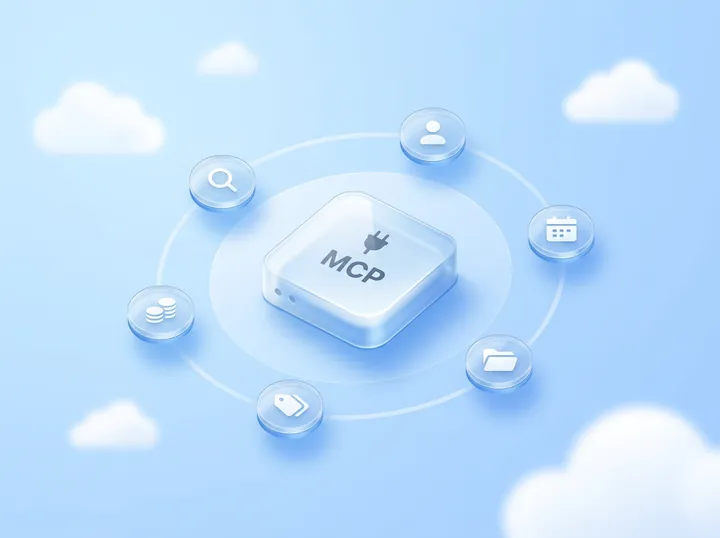
To connect your AI app to Zyflow, follow the same 3 steps in any app:
-
Copy your Zyflow link:. It’s the same server URL for everyone.
https://app.zyflowcrm.com/mcp -
Add it to your app. Claude: add a custom connector. Claude Code: one command. Cursor and VS Code: one-click install. Any other MCP app: paste the URL.
-
Sign in and approve one workspace. Your app gets a token tied to you and that workspace (OAuth 2.1 with PKCE), and the Connect page shows it as connected by itself.
What you’ll see
-
Your AI app opens a Zyflow window in your browser, so your password never goes into the AI app.
-
Log in, or choose “Create a free account” under “Welcome back”.
-
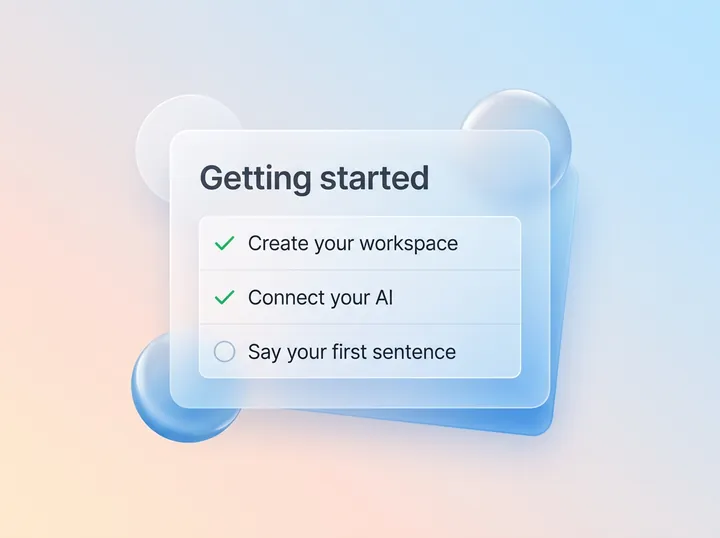
No workspace yet? Choose “Create my workspace”, name your business and come back to approve.
-
The approval screen names the app, where you’ll return and what the app will be able to do. Pick a workspace (each shows your role, and “already connected” where it applies) and press Approve.
-
You see “Connected” and return to your app. The Connect page shows “[App] is connected.” and History records it.
-
Finish within 10 minutes, or the request expires.
Can I connect more than one AI app?
Yes. Each app, yours or a teammate’s, connects on its own to one workspace and acts with the role of whoever connected it. All of them share the same customer records, so Cursor sees what Claude saved, and each change is labeled with the app and person (“Claude for Dana”).
Free plan. No card.
Setup guides
Claude, ChatGPT, Claude Code, Cursor, VS Code, Gemini CLI and Windsurf each have a guide. Any other MCP app can use the same link, an API key or the one-file local bridge.
A custom connector on claude.ai. Any Claude plan; Claude Free allows one.
Developer mode on Business, Enterprise or Edu.2
One command in your terminal.
One-click install, or mcp.json.
One-click install for agent mode.
settings.json, then /mcp auth zyflow.3
mcp_config.json, then refresh MCP servers.
Your Zyflow link, an API key or the local bridge.
Comparing apps? See all AI apps
Which AI plans work?
Claude on any plan. ChatGPT writes on Business or Enterprise/Edu in developer mode.2 Claude Code, Cursor, VS Code, Gemini CLI,3 Windsurf and any MCP app.
Does connecting cost anything?
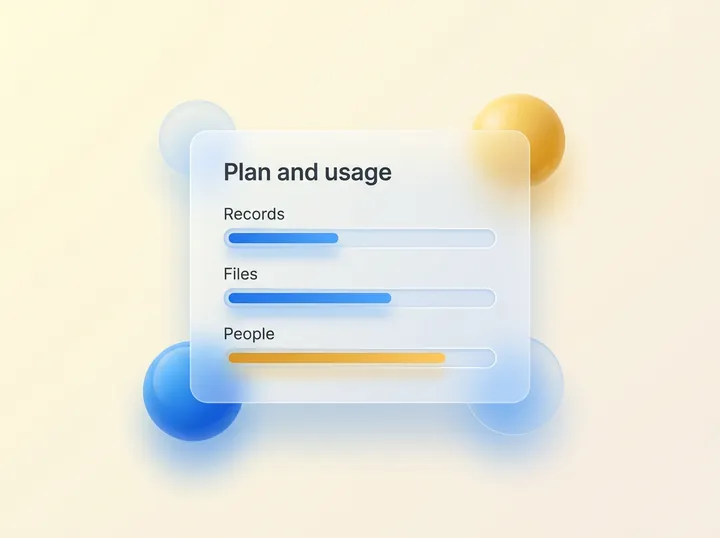
No. AI apps connect on every Zyflow plan, Free included, and your AI’s calls to Zyflow are never billed.4
Can an AI app have read-only access?
Yes, through a read-only API key, or an app that asks only to read. The approval screen has no read-only option yet: it grants what the app asks for, which is read and write by default. If a read-only connection tries to write, Zyflow refuses it before anything changes.
- Create a “Read only” API key on the Connect page. Send it in the Authorization: Bearer header, or use it with the local bridge.
- The Connect page marks read-only apps and keys “read-only”.
- A read-only key can still export the workspace, and keys last until you revoke them, so store them as carefully as a password. Read the security page.
How do I disconnect an AI app?
On Zyflow’s Connect page, find the app under Connected apps and choose Disconnect. It loses access right away, and your records stay as they are. History records the disconnect. You can’t undo it, so if you change your mind, connect again from your AI app. You revoke API keys on the same page.
- Members can disconnect their own apps; owners and admins can disconnect anyone’s.
- An app also stops working if the person who connected it leaves the workspace.
- Removing Zyflow in your AI app may not end its access. Disconnect it in Zyflow to be sure.
I connected the wrong workspace. How do I switch?
One connection reaches one workspace. Disconnect the app on the wrong workspace’s Connect page, then connect again from your AI app and pick the right one. The approval screen preselects the workspace the app already uses, or the first in your list, so check it before you press Approve.
Troubleshooting
“Welcome back”, but I’m new
Choose “Create a free account” at the bottom. Name your business, and you return to approve. Finish within 10 minutes.
“This connection request has expired”
Each request lasts 10 minutes. Start connecting again from your AI app.
“The access token is invalid, expired or revoked. Reconnect Zyflow.”
The app was disconnected, you left the workspace, or the app went unused for 90 days. Connect again from your AI app.
“Unknown app”
Do what the screen says: “Remove the connection in your AI app and add it again.”
Claude won’t let me add another connector
Claude Free allows one custom connector. Remove the other one, or use a paid Claude plan.
ChatGPT can’t write, or has no developer mode
Writing needs developer mode on ChatGPT Business, Enterprise or Edu, and an admin switches it on.2 On Plus, Pro, Go or Free, writing isn’t supported today. Claude works on every plan, including Claude Free.
“This connection is read-only”
The app or key can only read. Use a “Read and write” key, or connect the app again. A new connection gets read and write unless the app asks only to read.
My Zyflow link shows an error in a browser
That's expected: the link is built for AI apps. Paste it into yours.
- Still stuck? Contact us
- Spot an error? Tell us
Connection details for developers
| Item | Value |
|---|---|
| Server URL | https://app.zyflowcrm.com/mcp, one for every workspace. The token picks the workspace |
| Transport | Streamable HTTP, stateless, JSON responses. One JSON-RPC message per POST, no batches |
| MCP versions | 2026-07-28, plus 2025-11-25, 2025-06-18, 2025-03-26 and 2024-11-05 clients |
| Sign-in | OAuth 2.1 with PKCE (S256), dynamic client registration and client ID metadata documents. Discovery starts from a 401 with WWW-Authenticate. Or a Bearer API key |
| Scopes | crm:read and crm:write. A write on a read-only grant gets 403 insufficient_scope |
One workspace per connection
You sign in and approve, like “Sign in with Google”. Your AI app never gets your password, and it can’t touch billing, members or keys.
Every AI change labeled
Export any time