Install Zyflow in Cursor with one click
The install link opens the Cursor desktop app with Zyflow’s server already filled in, so you don’t type a URL or paste a key.
Opens Cursor and adds Zyflow. Sign in and approve when it asks.
-
Click Install in Cursor. If your browser asks to open Cursor, allow it.
-
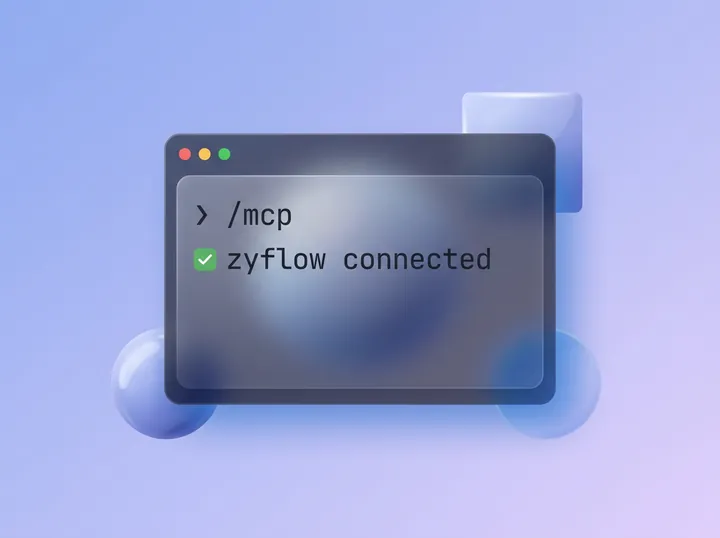
Cursor asks to install a server named zyflow. Confirm.
-
Sign in and approve when Cursor asks. Each screen is shown below.
Nothing happened? The link needs the Cursor desktop app installed. Allow your browser to open Cursor, or add Zyflow to mcp.json instead.
Looking in the Cursor Marketplace? Zyflow isn’t listed there yet. The install link above adds the same server a listing would.
For developers: the link is cursor://anysphere.cursor-deeplink/mcp/install?name=zyflow&config= followed by the base64 of {“url”:”https://app.zyflowcrm.com/mcp”}. Decode it to see what you’re installing: one URL and no key.
Or add Zyflow to Cursor’s mcp.json
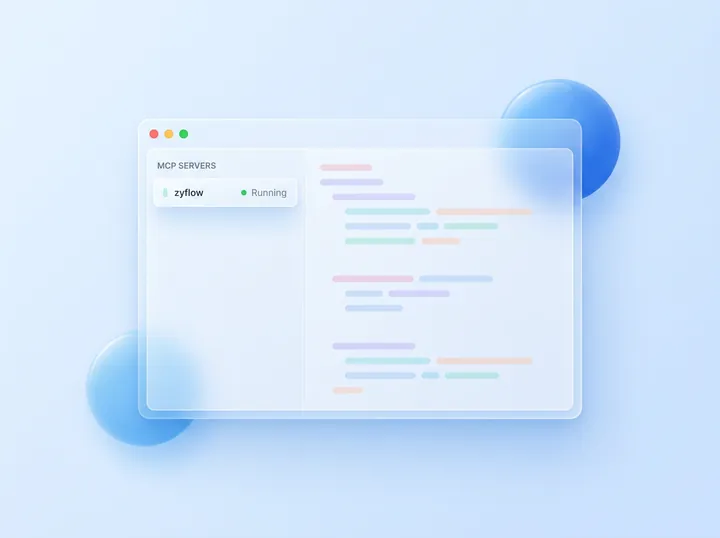
Cursor reads MCP servers from two files: ~/.cursor/mcp.json in your home folder, for every project, and .cursor/mcp.json in a project’s root, for that project only. Put each server in one file only. If it’s in both, it can show up twice. You can also manage servers from the Customize page in Cursor’s sidebar.
Add this entry, then save the file:
{
  "mcpServers": {
    "zyflow": {
      "url": "https://app.zyflowcrm.com/mcp"
    }
  }
}Already have servers? Put the zyflow entry inside the same mcpServers object. After you save, check that Zyflow shows on the Customize page.
Adding a different server? Any other remote server takes the same shape, with its own URL. A local server uses command and args instead of url.
Your Zyflow link
https://app.zyflowcrm.com/mcp It’s the same link for everyone. The first time, your AI app asks you to sign in and approve one workspace.
Free plan. No card.
Global or project file?
Use the global file, ~/.cursor/mcp.json. Your customers aren’t tied to one repo, so one entry covers every project. Use the project file when a client repo should carry the connection for the whole team. The entry holds only the link, so you can commit it. Each person still signs in as themselves, and their changes carry their own name.
Using an API key instead
Cursor can send a named API key instead of signing in, which suits scripts and read-only setups. You create the key on Zyflow’s Connect page. Add a headers entry beside url that reads the key from your environment, so the key itself stays out of the file:
"headers": { "Authorization": "Bearer ${env:ZYFLOW_API_KEY}" }Cursor fills in ${env:ZYFLOW_API_KEY} from your environment (Cursor docs, checked Oct 3, 2026). With a read-only key, Zyflow refuses every write, so the agent can look things up but can’t change them. Changes made with a key carry the key’s name.
Sign in and approve one workspace
The first time Cursor calls Zyflow, Zyflow replies that Cursor needs to sign in, and Cursor opens Zyflow in your browser. You choose one workspace and approve. It works like “Sign in with Google”: you never paste a password into Cursor.
-
Log in to Zyflow. New to Zyflow? Choose Create a free account under the log-in form.
-
The screen reads “Cursor wants to use your Zyflow”. Pick the workspace Cursor may use, then choose Approve.
-
Zyflow shows “Taking you back to Cursor…” and returns you there. If Zyflow’s Connect page is open, it switches to “Cursor is connected” by itself, and History records “Connected Cursor (read and write)”.
Cursor gets a token tied to you and that one workspace (OAuth 2.1 with PKCE). It can’t reach billing, members or API keys. Finish within 10 minutes. After that the request expires, and you start again from Cursor.
Use Zyflow as a CRM from Cursor’s agent
Once Cursor is connected, its agent can use Zyflow’s 32 tools to look up a customer, log a call and set the follow-up, save facts about a client, record money owed, make invoices and quotes, file documents and undo a change.
Say you’re in the Northwind repo when Maya Chen asks to move the staging review. Tell the agent without leaving the editor. Start by adding her as a customer:
- Add Maya Chen at Northwind as a customer, maya@northwind.example.
Log a call with Maya: she wants the staging review moved to Friday. Remind me Thursday at 4pm.
Remember that Northwind deploys need Maya’s sign-off.
Northwind owes us $4,800 and promised to pay by the 15th.
What’s on my plate today?
Undo what you just did.
If Cursor’s agent doesn’t use Zyflow, name it in the prompt: “Use Zyflow to find Maya’s last call.” Cursor’s docs suggest asking for a tool by name.
By default, Cursor asks before it runs each MCP tool. Click the arrow next to the tool name to see what it will send (Cursor docs, checked Oct 3, 2026). In Zyflow, every change Cursor makes is labeled “Cursor” with your name, and one click undoes it.1 Bulk edits run as a preview unless Cursor confirms them, and stop at 200 records. Anything Cursor deletes goes to the 30-day trash, where you can restore it.
What you told Claude yesterday, Cursor can read today, because every connected app reads the same customer facts. Cursor’s calls to Zyflow are never billed.2
This guide covers the agent in the Cursor desktop app.
Zyflow isn’t working in Cursor? Troubleshooting
Most problems take one step to fix: use mcp.json, remove a duplicate entry or sign in again. Find the symptom below.
- The install link did nothing. It needs the Cursor desktop app. Install Cursor and allow your browser to open it, or use mcp.json.
- Zyflow is listed but has no tools. Open Customize, check that Zyflow is switched on and sign in if Cursor asks.
- Zyflow is listed twice or acts oddly. It’s in both your global and your project mcp.json. Keep one.
- “This connection request has expired.” The sign-in screen lasts 10 minutes. Start again from Cursor.
- Cursor reaches the wrong workspace. One connection reaches one workspace. Disconnect Cursor on Zyflow’s Connect page, then connect again and pick the right one.
- Writes are refused. You’re using a read-only API key. Remove the headers entry and sign in, or use a read-and-write key.
- It worked before, and now Zyflow’s tools fail. Sign in again. A sign-in ends after 90 days without use, or when someone disconnects Cursor on the Connect page.
- Your Zyflow link shows an error in a browser. That’s expected: it’s an address for AI apps, not a web page.
- Still stuck? Open the Output panel (Ctrl+Shift+U, or Cmd+Shift+U on a Mac) and choose MCP Logs.
Spot an error? Tell us
Questions about Cursor and Zyflow
Where is mcp.json in Cursor?
Cursor reads mcp.json from two places. ~/.cursor/mcp.json in your home folder applies to every project, and .cursor/mcp.json in a project’s root applies to that project only. Put each server in one file only. You can also manage servers from the Customize page in Cursor’s sidebar.
Do I need an API key to use Zyflow in Cursor?
No. Zyflow’s entry in mcp.json holds only your Zyflow link. The first time Cursor connects, you sign in to Zyflow in your browser, pick one workspace and approve. Cursor gets a token tied to you and that workspace, so there’s no key or password in the file.
Can Cursor change my records without asking?
Not by default. Cursor asks before it runs each MCP tool, and you can see the arguments first (Cursor docs, checked Oct 3, 2026). If you let it run tools without asking, each change is still labeled “Cursor” with your name, and one click undoes it.1
Can text saved in my CRM make Cursor run commands?
Zyflow has built-in defenses against prompt injection: hidden characters are stripped, and file text reaches your AI labeled as customer data, not instructions. These are mitigations, not guarantees. Keep Cursor’s approval on for MCP tools and terminal commands, so you see what the agent wants to run before it runs.
Does Zyflow see my code?
Only what Cursor sends in a Zyflow tool call, such as a note it saves or a name it looks up. Zyflow can’t open your files or read the rest of the chat, and its call log records which tool ran, not what was sent. Zyflow runs no AI model and doesn’t train one on your data.
One workspace per connection
You sign in and approve, like “Sign in with Google”. Your AI app never gets your password, and it can’t touch billing, members or keys.
Every AI change labeled
Export any time